
Have you ever wondered, while playing Roblox, how to use autoclickers to complete tasks quickly or earn more points without repetitive effort? Many Roblox players face this challenge, especially in games that require continuous clicking to win or advance through levels. This is where the importance of autoclickers comes in; they've become a smart way to save time and improve performance within the vast and challenging world of Roblox.
It allows you to automate repetitive clicks, reducing manual effort and increasing your reaction time to tasks. In this article, we'll explain how to enable auto-click in Roblox step by step, sharing key details and tips to help you make the most of the customization tools and enhance your gameplay enjoyment and efficiency.
How do you set up auto-click in Roblox?
How to set up auto-click in Roblox is a frequently asked question among players, as this simple program saves them time and effort when performing repetitive in-game tasks. Auto-click is a tool that automates the process of clicking the mouse repeatedly and quickly, allowing you to focus on other aspects of the game without constantly pressing buttons. The program runs in the background and allows you to choose different click speeds and the number of clicks that suit your Roblox gameplay style.
How do I download and install Auto Click?
How to enable auto-click in Roblox depends on downloading and safely installing the correct version of the program. To do this, follow these steps:
- Visit the official AutoClick website and do not download it from unknown sources to avoid malware.
- After downloading, run the installation file.
- Choose your preferred language for the program interface.
- Make sure the program has the appropriate operating permissions on your system.
- After installation, open the program and familiarize yourself with its interface before starting.
How do I adjust the clicking speed?
In Roblox, to make auto-clicking work, you must precisely adjust the click speed. You can set the time interval between each click, whether in seconds or milliseconds, depending on the game's requirements. High speed is useful when you need to execute multiple commands quickly, while slower clicking is used for tasks that require a gradual or waiting period between commands within Roblox. By experimenting with several different values, you can find the ideal setting that gives you the best performance without crashes or lag.
How do I specify the button and click position?
How to set up auto-click professionally in Roblox requires specifying which mouse button will perform the click. Most players choose the left button because it matches the natural behavior in most games, but some prefer the right button for special tasks. Each button has a different effect depending on the Roblox game design, so it's helpful to experiment with more than one option to see which one suits your playing style.
Next, it's time to specify the click location. You can manually enter the coordinates to fix the location on the screen, or simply select the current cursor position to become the automatic click point. This feature gives you the flexibility to distribute clicks to specific locations without the need for frequent mouse movement, saving considerable time when performing repetitive tasks within Roblox.
How do I set the power switch?
In Roblox, setting up auto-click without a dedicated key would be impractical. Therefore, it's recommended to assign a shortcut key like F6 or Q to easily activate or deactivate the program. You can change this key at any time in the program settings to match your preferred Roblox control keys, allowing you to activate auto-click with a quick touch without leaving the game window.
How do I start and stop autoclicker?
Setting up auto-click in Roblox is very simple. Once you've finished configuring the settings, press your chosen shortcut key to activate auto-click, and the program will begin repeating clicks according to your specified criteria. To stop the process, press the same key again, and auto-click will stop immediately, allowing you to seamlessly return to manual game control.
How does autoclicking help in Roblox?
The auto-click feature in Roblox helps speed up the execution of repetitive tasks within the game, giving players a smoother and more efficient experience, especially in games that rely on progressive and time-based gameplay. For a more detailed explanation, see the following points:
Accelerate task execution
Using Roblox's auto-click feature gives players an incredible ability to complete tasks far faster than manual clicking. Repetitive games—like rapid-fire shooting or performing offensive moves—become much smoother and more efficient when auto-click is running in the background.
- Auto-click allows for extremely fast weapon firing in combat games without the need for continuous clicking.
- It helps in developing personalities through the continuous execution of daily tasks and automatic actions.
- It reduces the physical effort and strain caused by repeated tapping, making gameplay more comfortable and continuous.
- It enhances player performance in competitive events within Roblox through quick and accurate response.
Improving construction and agriculture
In games like BedWars or the farming worlds within Roblox, auto-clicking significantly reduces the time required for building or gathering resources. For example, you can instantly construct structures or farm while in AFK mode without constantly monitoring the screen. This way, you save time and develop your in-game skills more efficiently.
Automating click repetition
The auto-click feature isn't just about speed; it also records and automatically plays back sequences of clicks or movements. This means you can program a pattern—whether it's movement, farming, or fighting—to be repeated exactly as you recorded it, saving time and energy and giving you complete control over the gameplay without constant intervention.
What are the ways to use Roblox cards with AutoClick?
When discussing how to use auto-click in Roblox, it's not just about the tool itself, but also about smart ways to utilize Roblox cards. These cards allow you to top up your in-game balance and unlock greater control, customization, and performance improvements while using auto-click.
Buy premium items
You can use Roblox cards to purchase exclusive items that help speed up tasks or improve automation efficiency. Topping up your balance allows you to buy official clicker tools or automation add-ons within certain games, making the Roblox Auto-Click app more efficient and smoother during gameplay.
Character customization
With the credits you purchase using the card, you can customize your characters' appearance by adding unique outfits, advanced building tools, and trendy accessories that reflect your personal style. This customization not only gives them a unique look but also adds a more realistic and enjoyable experience when using auto-click tools within the Roblox world.
Support for paid games
Some games in Roblox offer paid content or special clicker tools, and that's where gift cards come in. They give you instant access to these tools, helping you progress quickly in farming modes or auto-click challenges. Once you understand how Roblox auto-click works, progressing becomes easier and more enjoyable.
Enhancing the collaborative gaming experience
Roblox cards aren't just for the individual; they also enhance social interaction. You can buy gifts for friends, exchange customization items, or share your achievements within the community. The more you interact, the more fun you'll have using Autoclicker together, transforming the experience into a shared adventure filled with accomplishments and challenges.
What are the best Roblox gift cards?
TechCard is one of the leading Saudi online stores specializing in selling certified digital top-up cards, such as Roblox cards and various game cards . The store is distinguished by its competitive prices, 24/7 customer support, and instant delivery via email after secure and easy payment. If you're looking for an official and fast way to top up your Roblox account and fully utilize the card code, TechCard is your trusted destination.
Roblox card - 4000 Robux
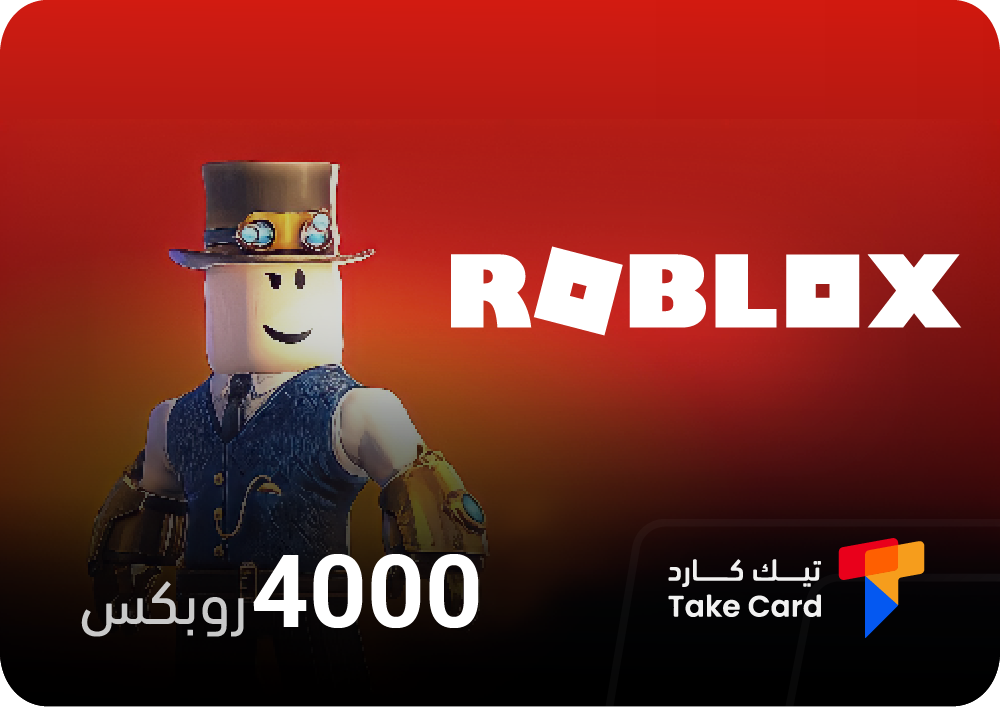
A digital card worth 4000 Robux is available through the TechCard store at a special price. The card will be sent to you immediately upon purchase, allowing you to top up your account directly and enjoy numerous benefits such as character customization, item upgrades, unlocking exclusive content, and enhancing the in-game social experience.
Roblox Card - 800 Robux
You can get a gift card worth 800 Robux instantly after purchasing from TechCard. This card is an ideal option for those who want to enhance their Roblox characters and buy accessories or activate unique tools and skins that showcase their personal gameplay style.
Roblox card – 10,000 Robux
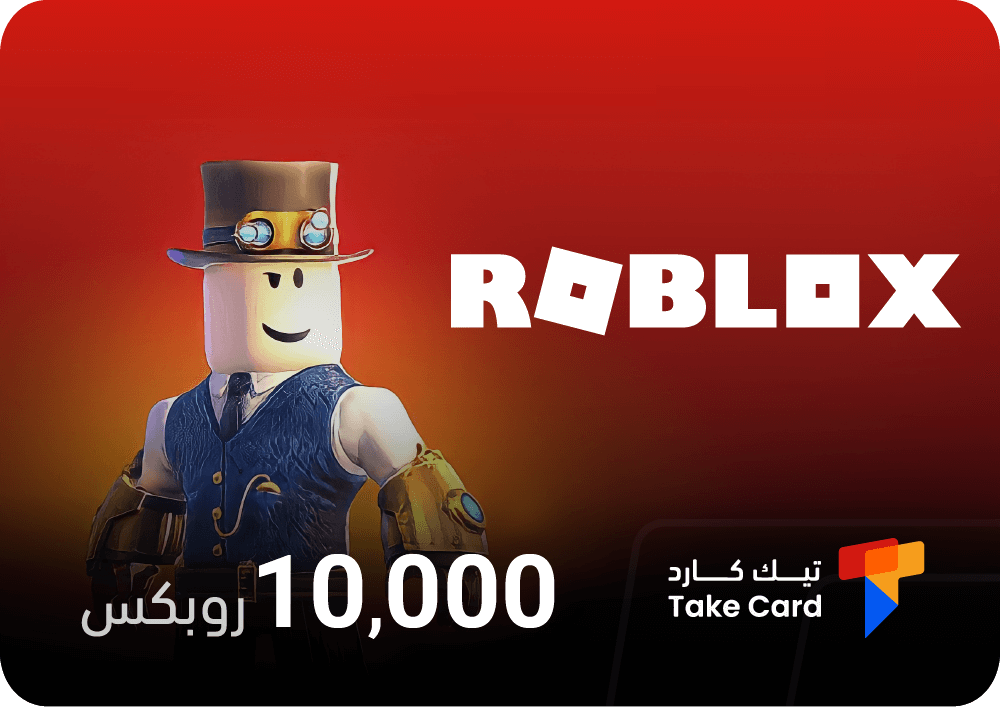
For those looking for larger shipments, we offer Roblox Gift Card – 10,000 Robux. Great value, fast delivery, and a competitive price. This gift card gives you more freedom to buy premium clothing and items, create your own content, and support 3D worlds in Roblox without needing a bank card.
Frequently asked questions about Roblox: How to set up autoclick
How do I enable autoclicker?
When searching for "Roblox how to set up autoclicker", you will find that implementing autoclicker requires following basic steps to set it up and run it within the game, as explained in the previous sections.
How to activate the tap-to-move feature in Roblox?
To enable the ClickToMove feature within Roblox, go to the StarterPlayer page, then change the DevComputerMovementMode and DevTouchMovementMode settings to the ClickToMove option.
Does Roblox allow auto-clicking?
Yes, the Roblox platform allows the use of auto-click applications, but some individual games may block this. It's best to use it with caution to avoid being banned from any game that has specific restrictions.
Read also: How to make a t-shirt in Roblox